Professional services
Need expert help? RAGcon GmbH offers:
- RAGflow Support
- RAGflow Hosting
- Moodle Support
User guide — for administrators
This guide is for Moodle site administrators who install, configure and operate the RAGflow suite. For teaching staff see the trainer guide; for learners the student guide.
Your responsibilities
- Install the plugins and connect Moodle to your RAGflow instance (once, centrally).
- Choose which features are available (Tutor blocks, Search blocks, the Helpdesk drawer).
- Manage permissions and monitor usage.
1. Install the plugins
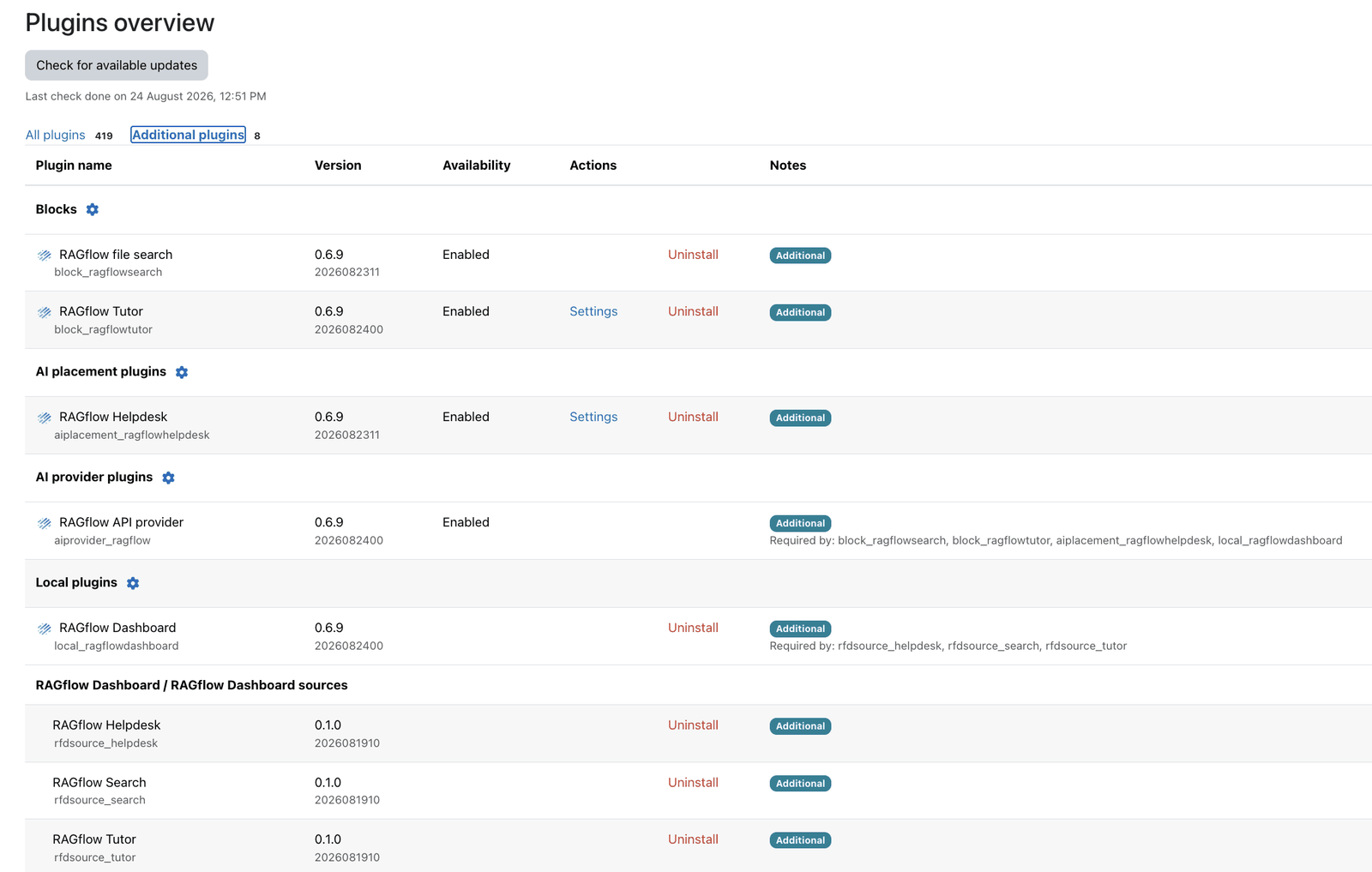 All five suite plugins after installation.
Install in dependency order, the AI provider first, then the rest:
aiprovider_ragflow(provider — required by all others)aiplacement_ragflowhelpdesk,block_ragflowtutor,block_ragflowsearchlocal_ragflowdashboard(optional)
Use the correct path for your Moodle version (public/… on 5.1+); the plugin installer handles this
automatically. See Moodle version specifics.
2. Connect to RAGflow
Follow Set up RAGflow: prepare a dataset + assistant in RAGflow, then add the RAGflow AI provider instance in Site administration → AI → AI providers with your base URL and API key. The provider is the shared backend for every other plugin.
3. Enable and configure the features
| Feature | Where to configure | Key settings |
|---|---|---|
| Helpdesk drawer | AI → AI placements → RAGflow Helpdesk | assistant, greeting, conversation memory (on), long-term memory (off), sources |
| Tutor block | Block added per course; admin setting under Blocks → RAGflow Tutor | upload limit, log-to-Moodle; per-block: assistant/KB, document source, sources |
| Search block | Block added per page (admin-only config); site-wide toggle under Blocks → RAGflow file search | per-block: knowledge base(s), scope, semantic weight; site-wide: log-to-Moodle |
| Usage dashboard | Plugins → Local plugins → RAGflow Dashboard settings | retention, anonymise, debug content limit, per-feature debug, raw API-call log |
4. Permissions
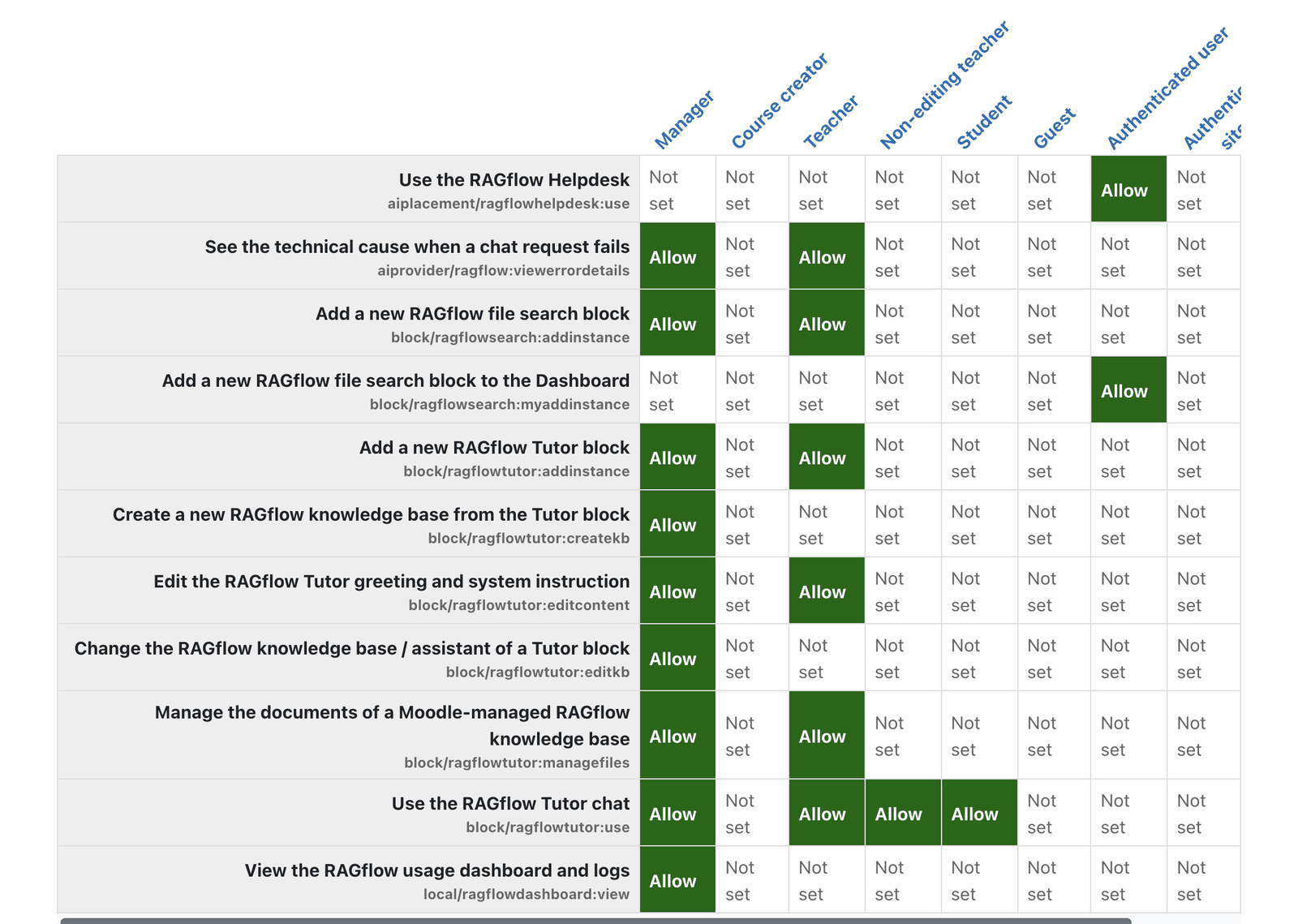 Capability overview — search for 'ragflow' in Define roles.
aiprovider/ragflow:viewerrordetails— who sees the technical cause of a failed chat (default Manager + editing Teacher; admins always). Keep it off for ordinary users, as it can reveal server internals.aiplacement/ragflowhelpdesk:use— who sees the Helpdesk drawer (default: any authenticated user).block/ragflowtutor:*— tutor use, add, edit content, change/create KB, manage files.local/ragflowdashboard:view— who sees the dashboard (default: Manager only).
5. Monitor and diagnose
Open Site administration → Reports → RAGflow Dashboard for request volume, success/failure rates, latency and error types. When diagnosing a specific feature, enable its debug capture temporarily to record the exact request/response (including the technical error cause) — then turn it off again (it captures user content). Mind data protection and the retention setting.
6. Removing the suite
The plugins depend on the AI provider, so uninstall them in reverse order and delete each plugin's folder as you go.
- Uninstall the feature plugins first — Dashboard, Tutor, Search, Helpdesk — at Site administration → Plugins → Plugins overview. Delete each plugin's folder when Moodle asks; otherwise Moodle still sees it on disk and offers to reinstall it (and it keeps the provider "in use").
- Delete the RAGflow provider instance at Site administration → AI → AI providers.
- Uninstall the AI provider last. It cannot be removed while any feature plugin's folder is still on disk, because Moodle then treats it as still required.
Your data lives in RAGflow, not Moodle
The plugins store only metrics in Moodle (the dashboard's tables, dropped on uninstall). Your knowledge bases, documents, conversations and long-term memory are held in RAGflow — uninstalling the Moodle plugins does not delete them. Remove the datasets, assistants and memories in RAGflow itself if you want them gone. For a single user's data, use Moodle's privacy tools.
Troubleshooting
| Symptom | Likely cause | Fix |
|---|---|---|
Unexpected response from RAGflow + HTTP 502/504 |
RAGflow unreachable / down | Check the RAGflow service; confirm the base URL is reachable from the Moodle server |
Unexpected response + HTTP 401/403 |
Bad API key | Regenerate the key in RAGflow, update the provider instance |
| Embedding / context-window error | Query too long for the embedding model | Use a larger-context embedding model |
| Provider not found for model …, or a new knowledge base has the wrong embedding model | No / wrong default embedding model in the RAGflow account | Set a working default in RAGflow (Model providers → Set default models); recreate any KB created with the wrong one (the embedding model of an existing KB can't be changed) |
| Empty answers, no sources | Dataset not parsed, or assistant not bound to it | Confirm parsing finished and the assistant is bound to the dataset |
| Assistant answers "no information" even though the knowledge base has the answer | Assistant's retrieval settings too strict — usually a rerank model plus the similarity threshold filtering out every passage on a small KB | Lower the assistant's Similarity threshold (~0.1) or remove the rerank model — see Set up RAGflow |
| Helpdesk item not in the menu | Placement disabled or no assistant selected | Enable the placement and select an assistant |
| Answer claims the knowledge base is "empty" for a question that has no match | RAGflow assistant's system prompt (its default) mishandles no-hit questions | Adjust the assistant's prompt in RAGflow — see Answer wording below |
| A greeting or small-talk answer shows sources / citations for documents that aren't relevant | Same default assistant prompt — it cites the dataset on every turn, so the model marks even a "hello" | Use a block-created assistant, or edit the assistant's prompt in RAGflow — see Answer wording below |
| This assistant is currently unavailable (privileged users also see …assistant no longer exists (id …)) | The assistant was deleted in RAGflow | Pick a valid assistant in the relevant settings — see When a reference is no longer available |
| A search shows …unavailable, ask your administrator to reconnect its knowledge base | The block's knowledge base was deleted in RAGflow | Reconnect a valid knowledge base on the block; the old id stays selectable and is never dropped on save |
When a reference is no longer available
Every place that uses a RAGflow reference (an assistant, a knowledge base or a memory) shares one availability check, which is careful to separate two very different situations:
- Missing — the list loaded fine, but the stored reference is no longer in it: it was deleted in RAGflow. This is a real configuration problem. Settings forms keep the old value selectable, labelled Unavailable — no longer in RAGflow (…), so a save never silently drops it; you fix it by choosing a valid reference. At runtime, users see a short currently unavailable message (privileged users also see the id and how to fix it).
- Could not be verified — RAGflow could not be reached to check (it was down, timed out or the key was rejected). This is a connection problem, not a configuration one: nothing about your setup changed. Forms show the stored value labelled Current — could not be verified and change nothing; the Dashboard shows an amber note. Once RAGflow is reachable again the reference verifies normally.
The Dashboard Status tab is the quickest way to tell them apart: missing is red, could not be verified is amber. A save on any settings page is guaranteed never to change a stored reference on its own — you always have to pick a new value explicitly.
Answer wording when nothing is found
The wording of an answer — including what the assistant says when a question has no relevant matches — comes from the RAGflow assistant's own system prompt, not from Moodle. RAGflow's default prompt instructs the model to "list the knowledge-base entries", so on a question with no hits (for example a greeting like "Hallo") the model may wrongly claim the knowledge base is empty, even though it contains documents — there were simply no matches for that question. The same default prompt also makes the model cite the dataset on every turn, so a greeting can show sources it never really used (inconsistently, since the model only sometimes adds the markers); a clean prompt fixes both.
Assistants created through the Tutor block get a clean prompt automatically. An assistant you created manually in RAGflow keeps RAGflow's default and may need adjusting. RAGflow ignores prompt changes made through its API on an existing assistant, so edit it in the RAGflow UI (open the assistant → Prompt engine → System prompt). A prompt that avoids the problem:
You are a helpful assistant. Answer the question using only the information in the knowledge
base below, and reply in the same language as the question. Take the chat history into account.

Do not list, enumerate or restate the knowledge-base entries, and do not output reference
identifiers (for example "ID 0", "ID: 1" or "[ID:1]") or a "Sources" / "Documents" section —
the application shows the sources separately. Just give the answer.

If the knowledge base contains nothing relevant to the question, say so briefly. Do not claim
that the knowledge base is empty or has no entries — there were simply no matches for this
question.

Knowledge base:
{knowledge}
This is the same clean prompt the suite gives to assistants it creates, so pasting it makes a manually-created assistant behave identically. What each part is for:
| Part of the prompt | Why it is there |
|---|---|
| Answer using only the knowledge base … reply in the same language as the question | Grounds answers in your documents (no invented facts) and makes the reply follow the question's language, not the documents' |
| Take the chat history into account | Coherent follow-ups in the conversational Helpdesk and Tutor |
Do not list/enumerate … do not output ID 0/[ID:1] or a "Sources" section — the application shows the sources separately |
Stops the default-prompt behaviour that dumps a "Sources / ID 0 / ID 1" list into the answer text and cites the dataset on every turn (which surfaces spurious sources even on a greeting). The Sources panel is built by the plugin from RAGflow's own citation data, so the model must not duplicate it |
| If nothing relevant … say so briefly. Do not claim the knowledge base is empty | Graceful "no match" wording; replaces RAGflow's mandated "not found in the dataset!" sentence and the false "the knowledge base is empty" claim |
Knowledge base: / {knowledge} |
Required placeholder — RAGflow injects the retrieved passages here. Keep it verbatim, or the assistant answers with no context |
Also clear the assistant's Empty response field if it is set — a fixed string there overrides the answer whenever retrieval is empty and defeats the wording above. The prompt language does not dictate the answer language (answers follow the question), so keep it in English or translate it for your team.
FAQ
Do I need to run RAGflow myself? Yes — the suite is a client for a RAGflow instance (self-hosted or hosted). It does not bundle RAGflow. You provide a reachable base URL and an API key.
Which models does the suite set up in RAGflow? None. New RAGflow accounts do not get default models automatically. You add your own (chat, embedding, optionally rerank) under Model providers and choose defaults under Set default models before using the plugins. Knowledge bases (including those the Tutor block creates) are embedded with your account's current default embedding model; the plugins never hard-code one. The embedding model of an existing knowledge base cannot be changed afterwards, so if a knowledge base got the wrong one (e.g. no default was set, or it pointed at an unconfigured provider, giving the "Provider not found for model …" error), fix the default in RAGflow and recreate the affected knowledge bases.
Is one provider instance enough for all plugins? Yes. Configure the provider once; the Helpdesk, Tutor and Search all use it. Each feature still selects its own assistant/knowledge base.
Where is data stored? Prompts (and, with long-term memory on, durable user facts) are sent to and stored in RAGflow — a third-party processor. Moodle itself stores only usage metrics (and, only while debug is on, bounded content). See each plugin's Privacy section.
Which Moodle versions are supported? 5.0, 5.1 and 5.2 from one plugin line. Moodle 4.5 and earlier are not supported. On Moodle 5.0, pin PHP 8.3 (5.0 rejects PHP 8.4). See Moodle version specifics.
Can teachers see the technical error details?
Only if they hold aiprovider/ragflow:viewerrordetails (default Manager + editing Teacher). Ordinary users only
see the generic message. The gate is enforced server-side.
How do I stop capturing user content? Turn off the per-feature debug toggle in the dashboard settings. Debug capture is off by default and should only be enabled temporarily for diagnosis.
Note: This documentation was created with the help of AI. Spotted an error, an omission, or something unclear? Please report it in the ragcon-docs GitHub repository so we can fix it.