Professional services
Need expert help? RAGcon GmbH offers:
- RAGflow Support
- RAGflow Hosting
- Moodle Support
User guide — for trainers
This guide is for teachers / trainers who add and run a RAGflow Tutor in their courses. Setup of RAGflow itself and site-wide options are handled by an administrator; learners have their own student guide.
What you can do
- Add a RAGflow Tutor to your course — a chat that answers from your course documents.
- Build and manage the tutor's knowledge base (upload, re-process, delete, download files).
- Set the greeting and system instruction to shape how the tutor responds.
- Add a RAGflow file search box for document look-up.
Exactly which of these you can do depends on the capabilities your administrator granted (typical defaults: teachers can use, add and manage files; managers can also create/change the knowledge base).
Add the Tutor block
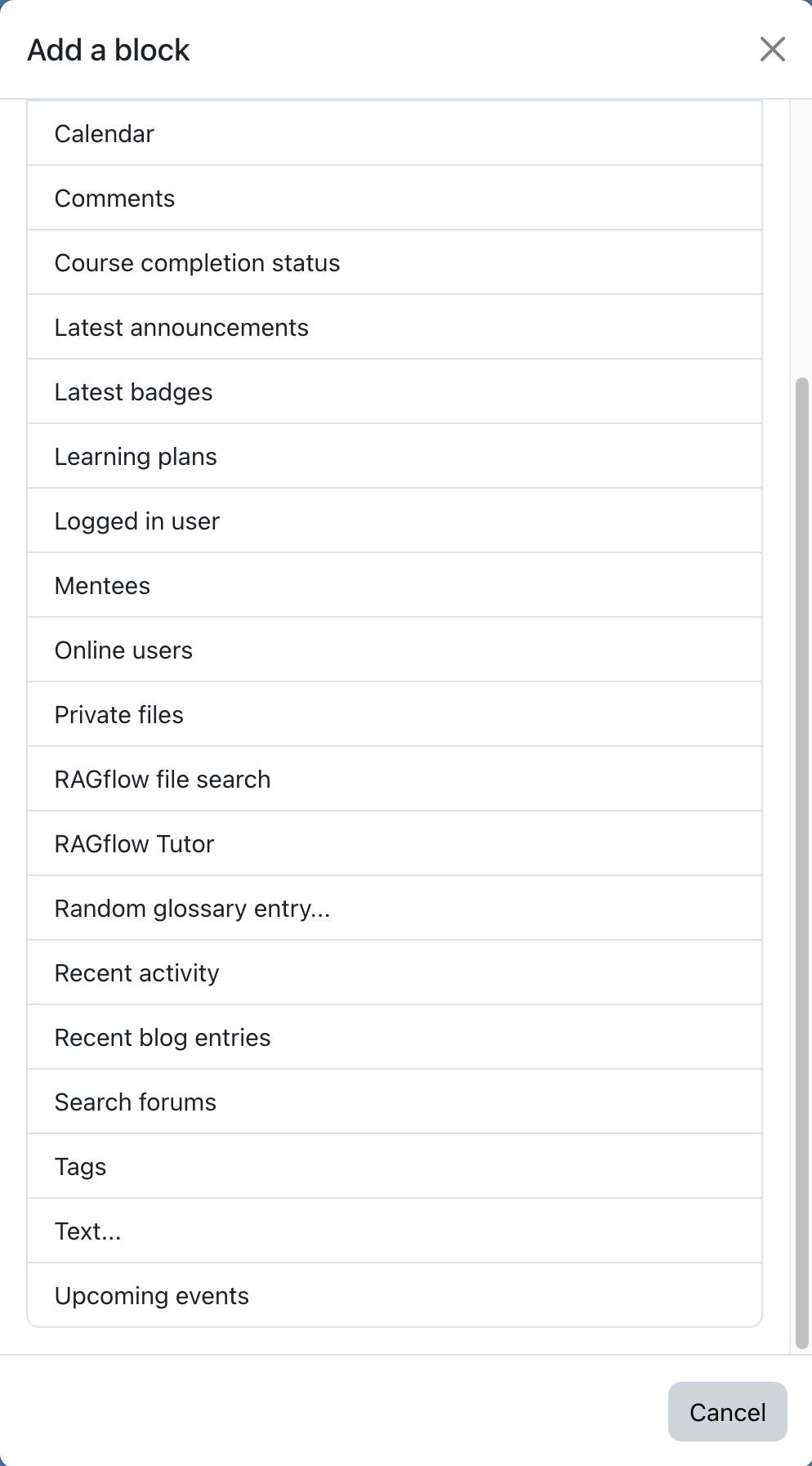 Turn editing on, then Add a block → RAGflow Tutor.
- In your course, turn editing on.
- Add a block → RAGflow Tutor.
-
Open the block's Configure screen. Selecting or creating the knowledge base / assistant is a manager / site-administrator task by default — if your role has it, you'll see the field:
- pick an existing one, or
- choose ➕ Create new knowledge base… and give it a name — the block creates a fresh RAGflow knowledge base for this course. Leave Manage files from this block ticked (the default) to upload and manage its documents from the in-block panel; untick it to only connect Moodle to the new knowledge base and manage the documents in RAGflow itself. This choice is fixed once the block is created.
If you don't see this field, the block shows a hint to ask a site administrator to choose a knowledge base. Once they have, come back and add your documents below. 4. Optionally set a greeting, a system instruction (tone, rules, "answer only from the course materials", etc.) and whether to show sources with answers (Include sources).
Build the knowledge base
For a This block instance (Moodle-managed) knowledge base, the block shows a knowledge-base panel with a status light and a file area:
- Add file — upload one or more documents. They are virus-scanned and sent to RAGflow, then parsed.
- Status lights: green = ready, yellow = still linking or a file is still parsing, red = a problem. Hover for details. The panel refreshes itself while things are processing.
- Re-process a file if you changed it or a parse failed; delete a file you no longer want; download a file (a secure, short-lived link).
Where your files live
Uploaded documents are stored in RAGflow, not in Moodle, and are visible/manageable by all trainers and admins of the course. Only upload material you may share with the tutor.
Wait for parsing
The tutor can only answer from documents that have finished parsing (green). Give large uploads a little time before testing.
Add a Search block (optional)
Add a block → RAGflow file search puts a search box on the page. Note that choosing the knowledge base for a search block is reserved to site administrators — ask your admin to point it at the right dataset.
FAQ
The tutor says "Unexpected response from RAGflow" — what do I do?
Usually the RAGflow service is briefly unavailable; try again shortly. If it persists, contact your
administrator. If you hold the right permission, expand Details under the error to see the technical
cause (e.g. HTTP 502).
The tutor doesn't know something that's in my documents. Check the knowledge-base panel: is the file green (parsed)? A yellow/red file isn't searchable yet. Re-process it if needed, and make sure the document actually contains the answer.
Can I limit the tutor to just my course's materials? Yes — a This block instance knowledge base (the default for a block-created KB) answers only from the files you upload to that block.
Who can see and manage the uploaded files? All trainers and admins of the course. Students only chat with the tutor; they don't see the file panel.
Can I change the assistant/knowledge base later? If you have the change knowledge base capability (often Manager), yes, via the block's Configure screen. Otherwise ask your administrator.
How do I change the tutor's tone or rules? Edit the system instruction in the block configuration (requires the edit content capability). The greeting is the first message learners see.
Is there a size limit for uploads? Yes — set by your administrator (default 50 MB per file), capped by Moodle's own upload limit.
Note: This documentation was created with the help of AI. Spotted an error, an omission, or something unclear? Please report it in the ragcon-docs GitHub repository so we can fix it.